
Congrats for taking the first step to enhance conversions on your site!
Let’s install Social Proofy on your Kartra site.
Part 1 – Add your site on Social Proofy
Step 1- Log in to your Social Proofy account, click on the button that says New Website and register your site.
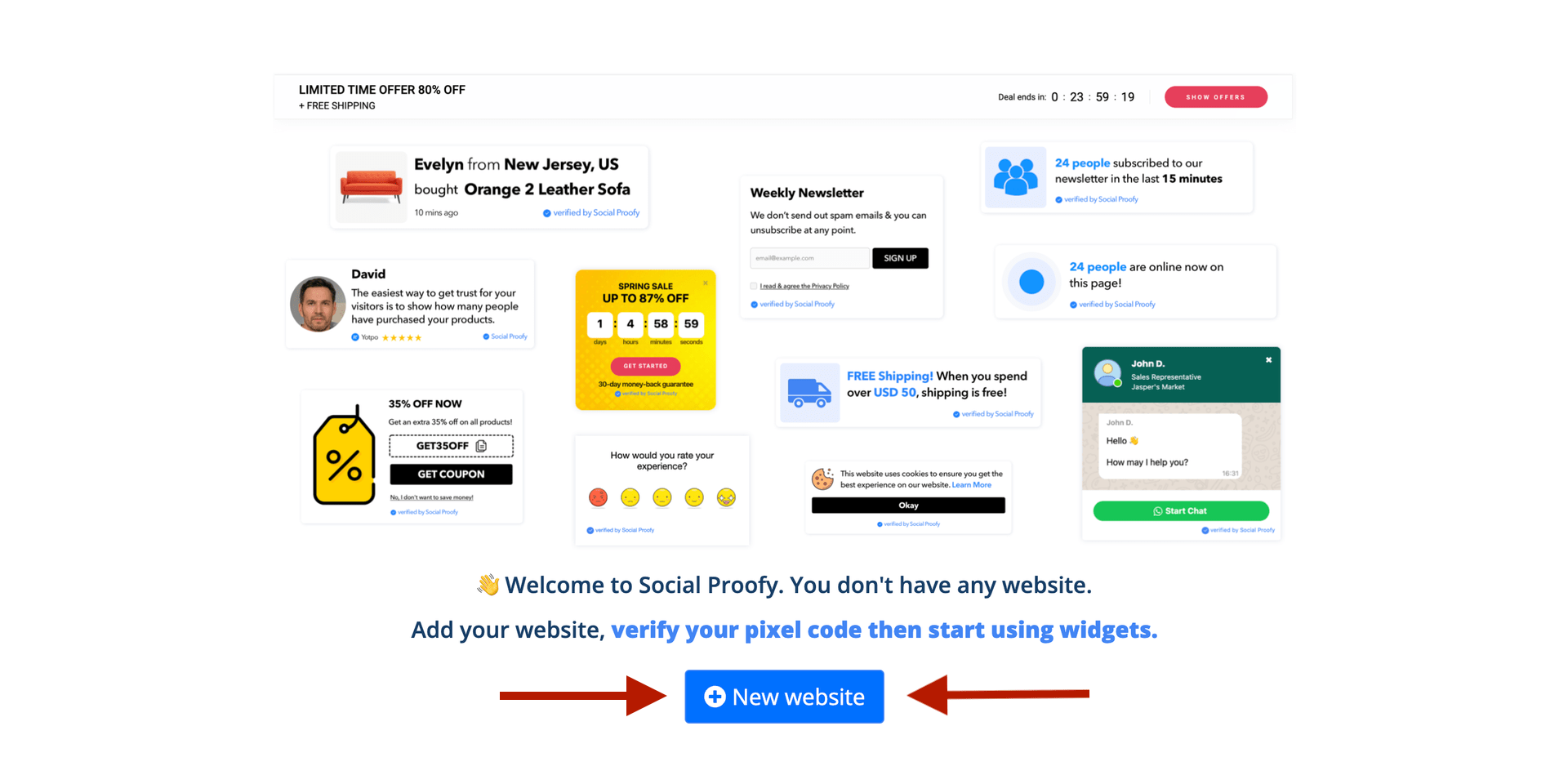
Step 2 – After adding your site, go to the top left corner of your Dashboard and click on the Red Dot next to “Pixel not active”.

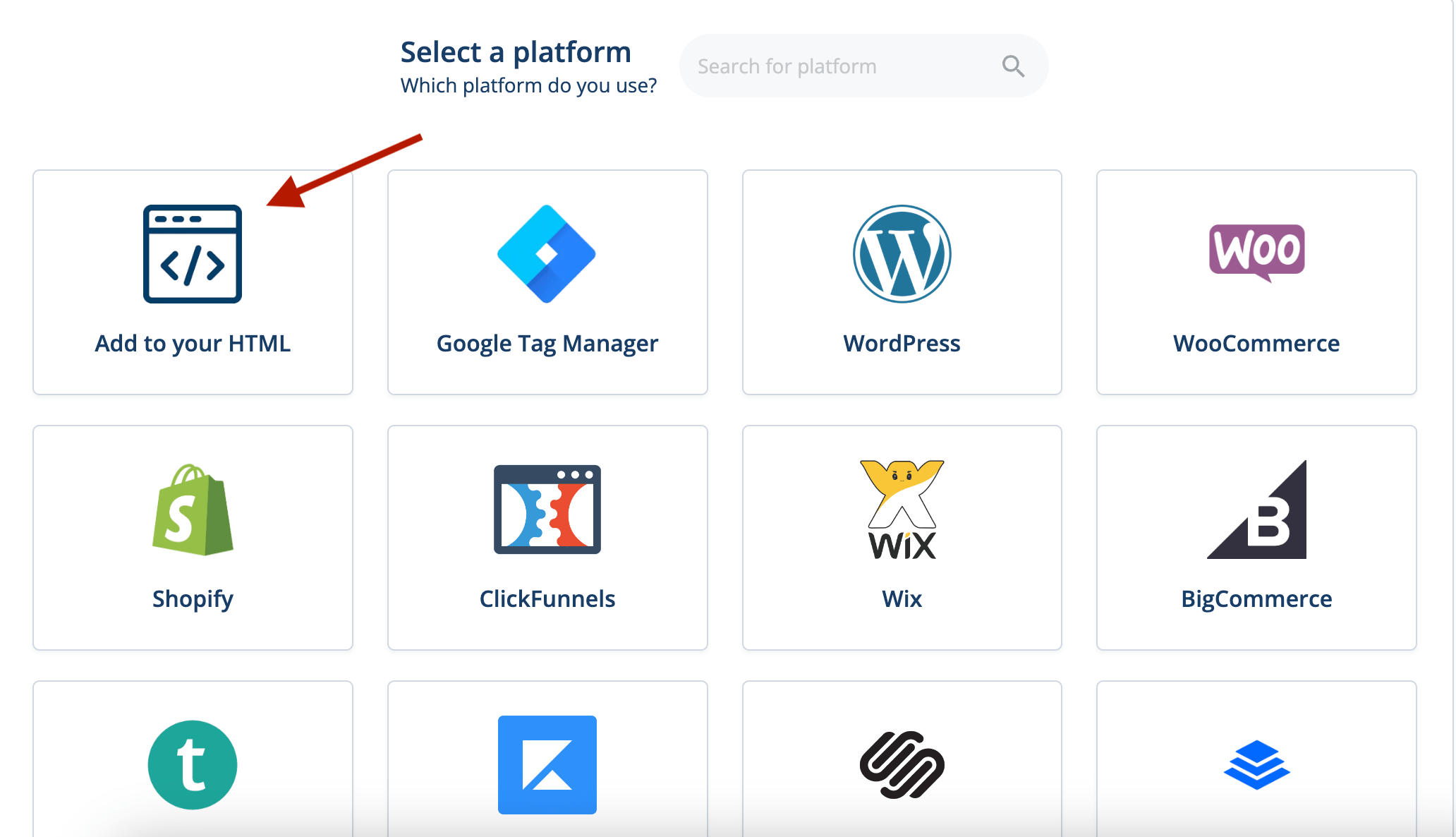
Step 3 – Select the “Add to your HTML” option.
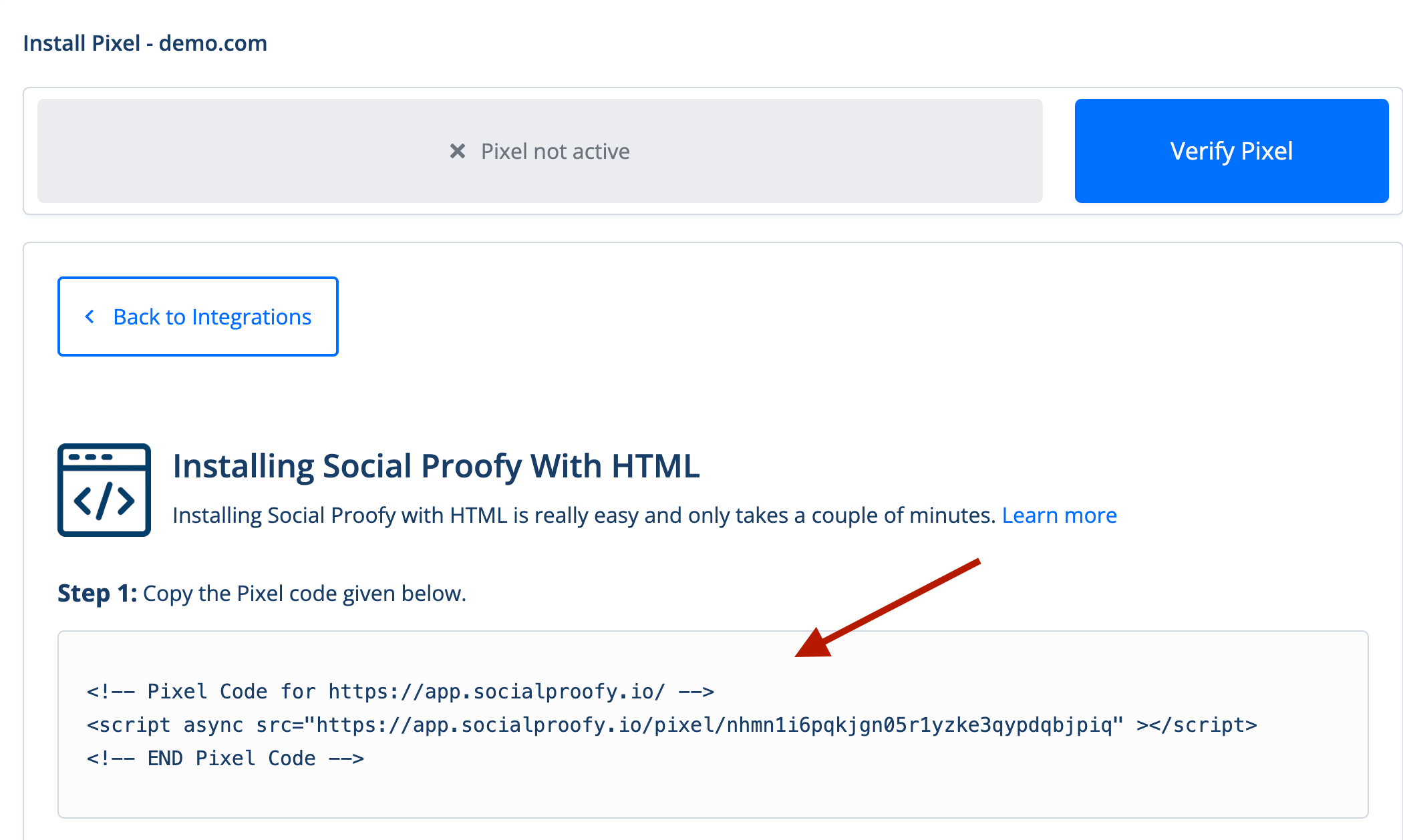
Step 4 – Copy the code snippet. You’ll need this later.
Part 2 – Add HTML Snippet to Kartra
Step 1 – Log into your Kartra account and open your page.
Step 2 – Select Pages from the left menu bar.

Step 3 – Select the page you want to show Social Proofy on and select Edit Page > Edit.


Step 4 – Afterwards, click on Settings.

Step 5 – Select Tracking Code.

Step 6 – Paste the Social Proofy Pixel code inside the Head. Make sure to remove the <script></script> tags and the descriptive text.

Step 7 – Go back to your Social Proofy Dashboard and click on the Red Dot next to “Pixel not active”, once again.
Step 8 – Once there, click on the Verify Pixel button.

If it shows Green, you’re all set. You have successfully installed the Social Proofy Pixel on your site.

The code will be added to all pages on your site and Social Proofy will start working.
If it does not show green? Click the chat bubble in the app so we can assist you 1-on-1 setting up your Pixel.
Now that you’ve added Social Proofy to your site, the fun part starts!
Part 3 – Webhook Integration
Use Kartra’s Outbound API with Social Proofy’s webhooks.
In Social Proofy, edit/create a notification that tracks “webhooks” and copy the Webhook URL (read more about it here)
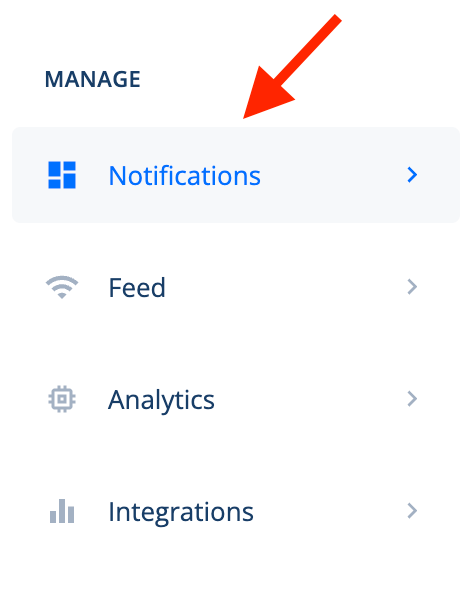
Step 1 – To do this go into your Social Proofy Dashboard and click Notifications.
Step 2 – Create a Notification (in this case we are using the Recent Sales Pop notification).

Step 3 – Select the Webhook & Auto Capture tab option (more info here).

Step 4 – Copy the URL for the Webhook Trigger.

Step 5 – Complete the Notification Setup and hit Save.
Step 6 – Go to Kartra main page and then select My Integrations and pick Outbound API.
Step 7 – Enable the Outbound API and paste the Social Proofy webhook URL there.

Step 8 – Pick the relevant event to send to Social Proofy and Save.

