
Congrats for taking the first step to enhance conversions on your site!
Let’s install Social Proofy on your Shift4shop site.
Part 1 – Add your site on Social Proofy
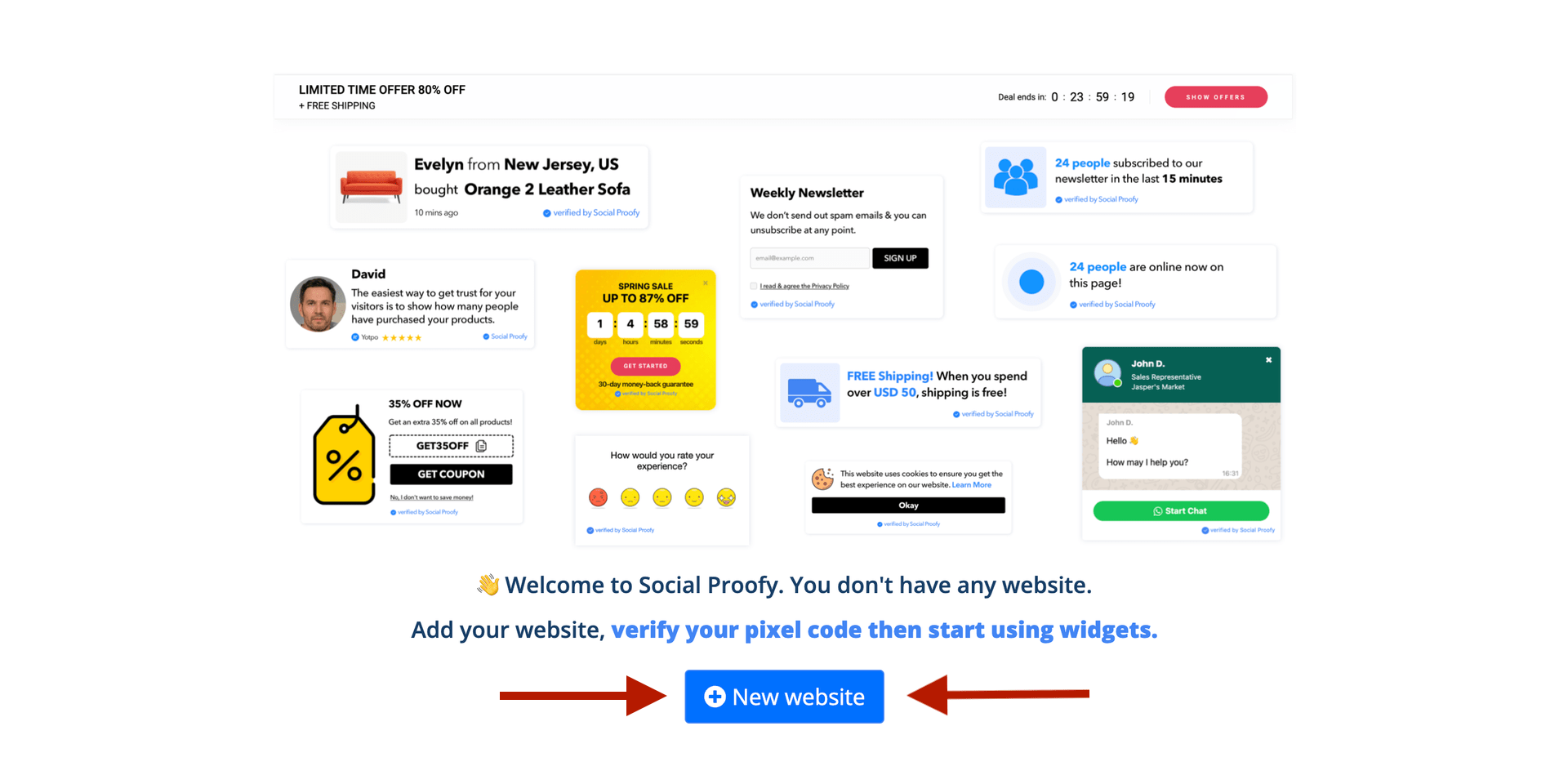
Step 1- Log in to your Social Proofy account, click on the button that says New Website and register your site.
Step 2 – After adding your site, go to the top left corner of your Dashboard and click on the Red Dot next to “Pixel not active”.

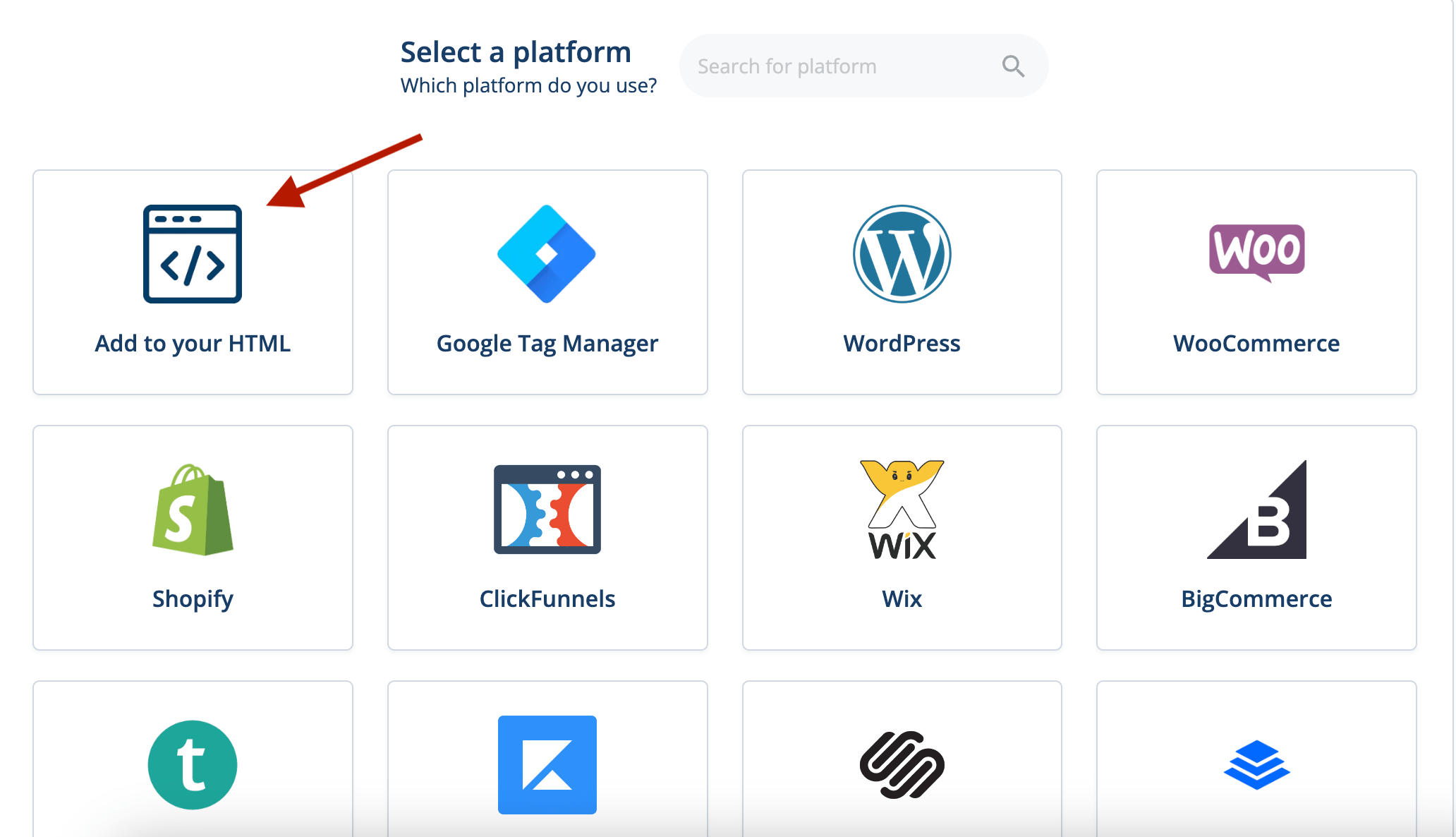
Step 3 – Select the “Add to your HTML” option.
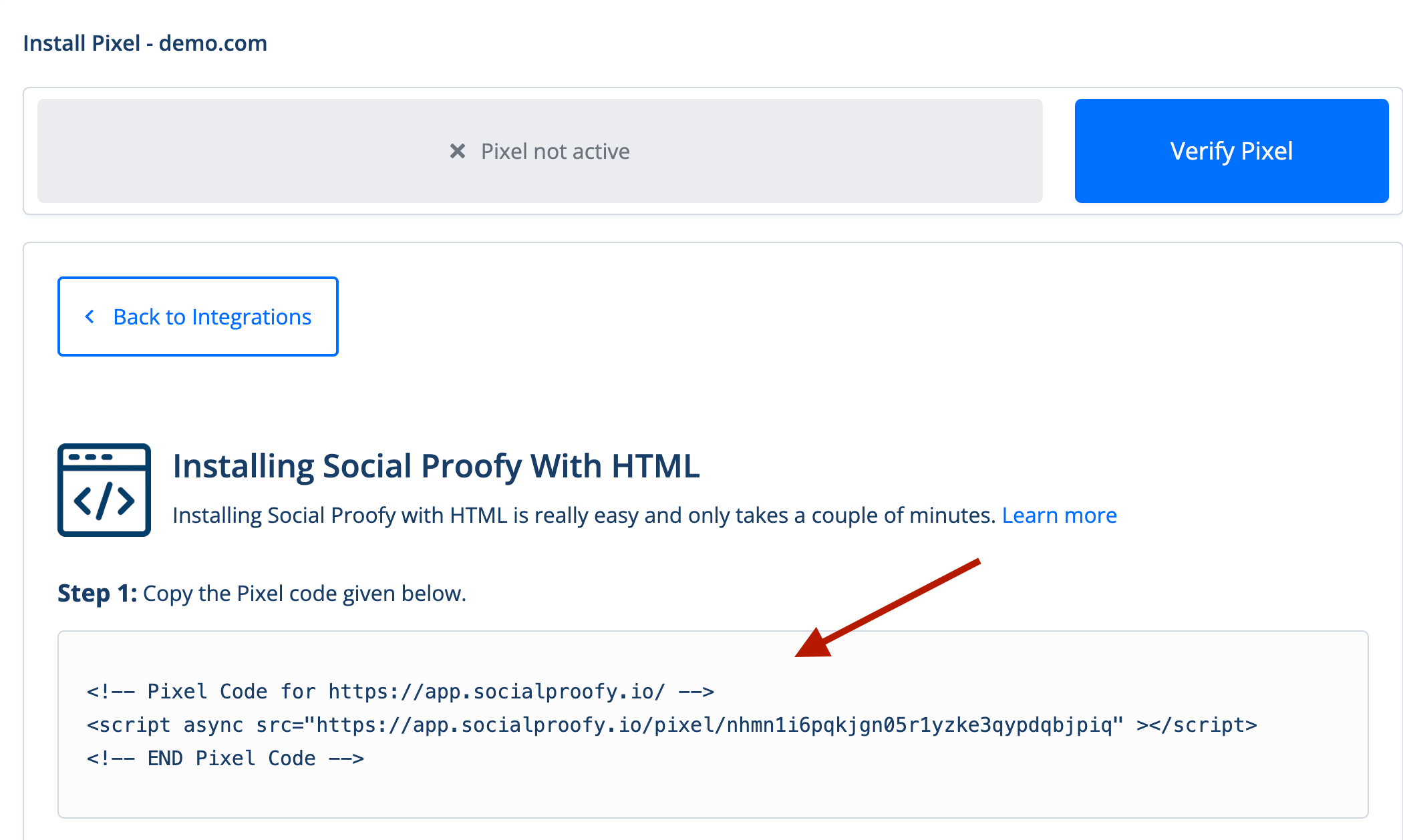
Step 4 – Copy the code snippet. You’ll need this later.
Part 2 – Activate your Pixel
Step 1 – Log into your Shift4Shop Online Store Manager.
Step 2 – Using the left hand navigation menu, go to Settings > Design > Themes & Styles.

Step 3 – Scroll down to Edit Template and press the Open Template Editor button.

Step 4 – Click on the frame.html template to open it up in the Template Editor

Step 6 – Within the HTML coding look for the closing head tag which will look like this: </head>. And pase the code from Part 1 Step 4 right above it.

Step 7 – Go back to your Social Proofy Dashboard and click on the Red Dot next to “Pixel not active”, once again.
Step 8 – Once there, click on the Verify Pixel button.

If it shows Green, you’re all set. You have successfully installed the Social Proofy Pixel on your site.

The code will be added to all pages on your site and Social Proofy will start working.
If it does not show green? Click the chat bubble in the app so we can assist you 1-on-1 setting up your Pixel.
Now that you’ve added Social Proofy to your site, the fun part starts!
Extra: Part 3 – Let’s add your first widget!

